Preloading Files onto Bulk USB Drives: Folder Layout, Naming Rules and a 3-Step Check
A preloaded USB drive ships with your files already written to it at the factory - the recipient plugs in and reads, with nothing to install and nothing to copy. For a handbook, a sales deck or a training video that is the whole point: the drive is the delivery, not just the storage. The mistakes that send a batch back are boring and avoidable - a folder that will not open on a Mac, files in the wrong order, or a few drives in the box that were never written.
What preloading means in a bulk order
Preloading is done before packing, on the supplier's bench, usually by imaging the memory chips from a master file set rather than plugging each drive into a laptop. That matters for two reasons: every drive gets an identical copy, and the supplier can run a count and a check before the box is sealed. What you are buying is not "a USB stick plus a file" - it is "a USB stick that already contains your file, verified."
Folder layout that opens the same way on Windows, macOS and a car head unit
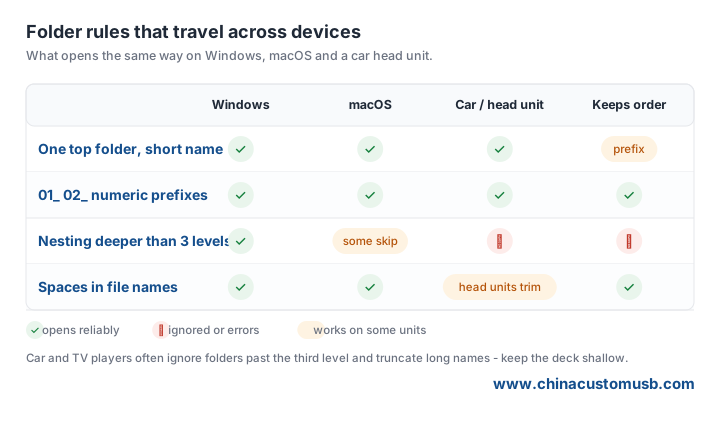
Keep the structure shallow and the names plain. One top-level folder with a short name, then your files directly inside or in one or two subfolders. Windows, macOS and most car head units all read this without complaint. The moment you nest three or four levels deep, or use long mixed-case names, the weaker players start dropping folders.
Naming rules that keep files in the order the recipient should read or watch
Files sort alphabetically, and alphabet does not know your intent. Prefix every file with a two-digit number so the order is forced: 01_Welcome, 02_Manual, 03_Video. Without the prefix, "Manual" can sit above "Video" or below "Welcome" depending on the device, and the recipient opens them in the wrong sequence. Avoid spaces where you can - some head units truncate them - and use underscores instead.
A 3-step check before the drives are boxed
This is the part that catches a bad batch, and it is cheap to do. First, count the drives against the file set: the number shipped should match the number preloaded, with none left blank. Second, open one file from each folder on a test machine to confirm the content is whole and not corrupt. Third, compare the folder tree against your master list so nothing is missing or misnamed.
Ask the supplier to run the count and the sample open on the same bench that does the load, and to report the result. A supplier who will not describe the check is one you should not trust with the batch.
What to send your supplier so the preload matches the set you already tested
Send the final file set as a single zipped master, the exact folder layout you want (with the numeric prefixes), the target file system if it matters (FAT32 for max device compatibility, exFAT if you have files over 4GB), and one sample drive preloaded by you that the supplier can mirror. Mirroring a tested drive removes the guessing: what you approved is what ships. If the content is not final, say so - a frozen master is the difference between a clean run and a re-write.
Send your file set and the folder structure you want, and we will preload one sample drive for you to open before the bulk run starts.
Need custom USB drives for your next project?
Factory-direct pricing, free digital proof and a 7-day sample turnaround.
Get a free quote