USB Drive Not Recognized in Windows or Mac: 6 Checks Before You Call It Dead
'USB device not recognized' does not mean the drive is dead. It means one layer of the connection broke before the file system came up - the port, the cable, a driver, or the partition table. The fix that works depends entirely on which layer dropped, and the order of checks matters because a later step can hide an earlier fault. Work down the stack from the physical connection to the software, and you will usually find the cause in the first three checks.
Four Failures Hide Behind 'Not Recognized'
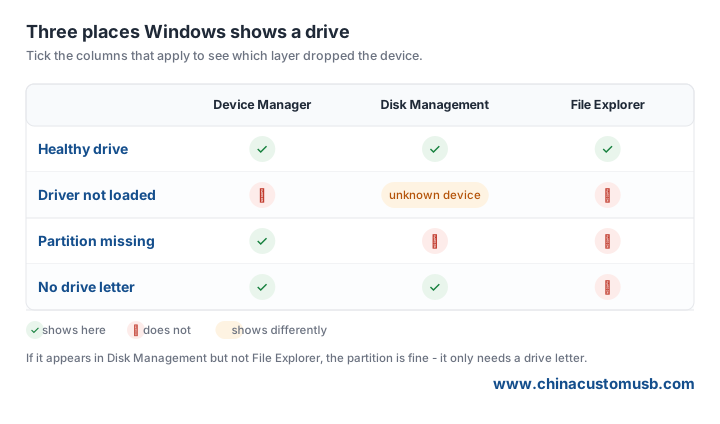
The same words cover four different problems. No power at the port looks identical to a dead drive. A missing driver makes the device appear as 'Unknown USB Device' in Device Manager but never in File Explorer. A healthy device with no partition shows in Disk Management but will not open. And a drive with no letter mounts fine but stays invisible in Explorer. Picking the wrong fix - reformatting, say - destroys data you could have recovered by assigning a letter. The checks below separate these four cases.
Check 1 and 2: Port, Cable, and a Second Machine
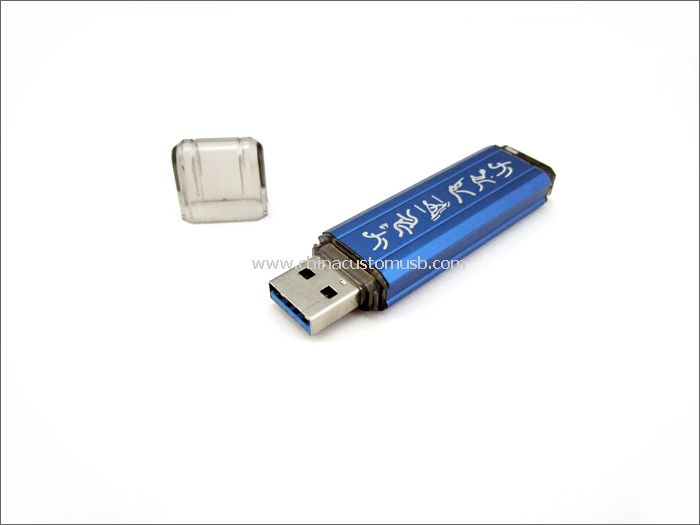
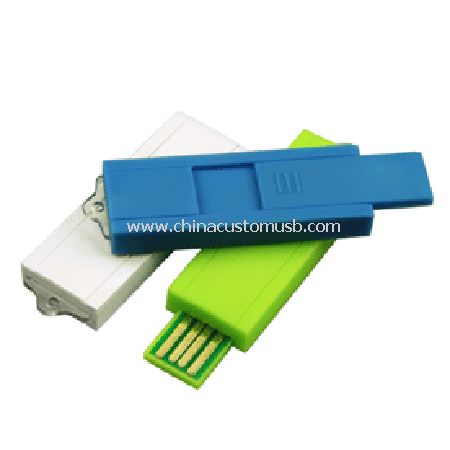
A bare mini body like the one below carries no indicator light, so a dead port looks exactly like a dead drive - check the port first, not the drive.
Try a different port on the same computer, ideally one on the motherboard rather than a front hub. Then try a different cable, because a worn cable can deliver power but fail data. Finally, plug the drive into a second machine - a laptop if you were on a desktop. If it appears on the second machine, the fault is the first port, the cable, or that computer's driver stack, not the drive. On a Mac, the same first moves apply: a different port and a different cable rule out the physical layer before you open Disk Utility.
Check 3 and 4: What Device Manager and Disk Management Already Know
On Windows, Device Manager shows whether the system sees the hardware at all. If the drive appears as 'Unknown USB Device' or with a yellow mark, the driver or the controller handshake failed - that is Check 5 and 6. If Device Manager is clean but the drive is missing, open Disk Management. A drive listed there with 'Unallocated' or 'No Media' points to a partition or controller fault, not a port. On macOS, Disk Utility's left panel shows the same split: a device that appears but will not mount has a file-system or partition problem; one that never appears at all is a connection or hardware fault.
The Three Places Windows Shows a Drive
Before touching drivers, confirm which of the three panes the drive reaches. The pattern tells you the layer that failed.
Check 5 and 6: The Drive Letter and Reinstalling the Driver
If Disk Management lists the drive with a healthy partition but no letter, right-click the volume and assign a letter - the data is intact, it was simply unmounted. If Device Manager shows the device with an error, uninstall the USB controller entry and reboot so Windows reloads the driver; on macOS a reboot clears the same class of fault. Do not format a drive that appears with 'Unallocated' unless you have already recovered what you needed - formatting is the last step, not the diagnostic.
If It Is One Drive Out of a Shipment
A single failure in a bulk lot is a returns item. A pattern - three of twenty not recognized on the same machine - is either a port or a batch issue, and the photo decides it. Plug three drives from the same lot into a known-good port and photograph what Device Manager and Disk Management show for each. If two are fine and one is not, that unit is defective; if all three behave the same on a good port, the fault sits in the lot, not the PC. Send those photos; we will tell you whether the fault sits in one unit or in the whole production lot, and what to claim.
Need custom USB drives for your next project?
Factory-direct pricing, free digital proof and a 7-day sample turnaround.
Get a free quote